
Back to Articles
Loading article...
··
Preparing article content & visual banner...
Docker packages an application and its dependencies into an image, which can be used to run containers consistently across different environments. A Dockerfile defines how to build an image, while a registry stores images you can download and share. Learning a few basic commands is enough to start building, running, and troubleshooting containers.
Node.js, NestJS, Java Backend Engineer

If you are beginning to learn DevOps, cloud computing, or Kubernetes, you will probably encounter Docker early on.
When I first heard about Docker, terms such as containers, images, Dockerfiles, registries, and containerization made it seem more complicated than it was. Once I started using it, the main idea became much clearer:
Docker lets us package an application with what it needs to run, so it can work consistently across different environments.
In this article, I will start with the basics of Docker and then look at some essential commands.
Docker is a platform for building, packaging and running applications in containers.
Think you have a Node.js application and it may depend on:
package.jsonnode app.jsBut inssted of starting the application reports an error:
Error: Cannot find module 'express'Their environment may be different from yours. They might be using another Node.js version, missing a required package, or lacking a system dependency. This is where Docker helps. Instead of sharing only the application code, you can package it with the environment it needs into a Docker image. You can then use that image to start a container that runs the application.
I think most developers have heard the phrase:
It works on my computer.
An application may run well on one computer but fail on another because the environments differ. Developers might use different operating systems, runtime versions, libraries, dependencies, configurations or environment variables.
Docker helps reduce these differences. It packages an application and its required runtime and dependencies into an image. That image can be used to start containers on a developer's machine, a test server, or a cloud server.
Because each container starts from the same image, the application has a more consistent environment wherever it runs. This makes its behavior easier to predict, although settings such as environment variables sill need to be configured correctly.
Containerization means packaging an application with the runtime and dependencies it needs, then running it in an isolated environment called a container. You can think of a container as a lightweight space set aside for your application.
For a Node.js application, the container might include the application code, a Node.js runtime, and the required packages. Its configuration can be supplied when the container starts.
Docker provides the tools to build the image for that application and run it as a container.
A common question when learning Docker is: Is a container the same as a virtual machine?
They both provide isolated environments, but they work differently. A virtual machine (VM) runs its own guest operating system on virtual hardware. A container uses the host system's kernel while keeping its application and processes isolated from other containers.
| Virtual machine | Container |
|---|---|
| Includes a guest operating system | Shares the host system's kernel |
| Runs an application within that guest OS | Runs an application in an isolated environment |
| Usually needs more resources and takes longer to start | Usually uses fewer resources and starts faster |
Because containers do not need a separate guest operating system for each application, they are generally lighter and quicker to start than traditional VMs.
A Docker image is a read-only package used to create containers. Think of it as a blueprint: it defines what an application needs to run.
For example, an image for a Node.js application might include its code, a Node.js runtime, and the packages it depends on. You can use that one image to start several containers.
Each container is a separate instance of the application, even though all of them were created from the same image.
A Docker container is an instance created from an image. When you start the container, it runs the application defined by that image.
For example: docker run node:22 node --version
Docker uses the node:22 image to create a container, runs node --version inside it, and displays the result. The container then stops because the command has finished. This shows that a container does not have to keep running indefinitely.
A simple way to remember the difference is:
Image = Blueprint Container = Instance created from that blueprintIf you are familiar with object-oriented programming, you can loosely compare an image to a class and a container to an object. The analogy is not technically exact, but it can help you remember the distinction.
A Dockerfile is a text file containing instructions that Docker uses to build an image. For a small Node.js application, it might look like this:
FROM node:22-alpineWORKDIR /appCOPY package*.json ./RUN npm ciCOPY . .EXPOSE 3000CMD ["node", "app.js"]| Instruction | Purpose |
|---|---|
FROM node:22-alpine | Starts with an image that includes Node.js. |
WORKDIR /app | Sets /app as the working directory inside the image. |
COPY package*.json ./ | Copies the package files needed to install dependencies. |
RUN npm ci |
This example assumes your project has a package-lock.json file and an app.js file. You can build the image by running this command in the directory containing the Dockerfile:
docker build -t my-node-app .Then start a container from that image:
docker run -p 3000:3000 my-node-appThe -p 3000:3000 option makes the application's port available on your computer, provided the Node.js app listens on port 3000 inside the container.
The main workflow is simple: Write a Dockerfile, build an image from it, and run a container from that image.
So far, we have looked at how to build our own Docker image. But where can we find images that other people have already created?
A container registry is a place where images are stored and shared. One well known public registry is Docker Hub, which hosts images for tools and runtimes such as Node.js, Redis, PostgreSQL, MySQL and Nginx.
For example, you can download a Node.js image with:
docker pull node:22-alpineYou can then use that image to create a container:
docker run --rm node:22-alpine node --versionThis command runs node --version inside the container and prints the result. The --rm option removes the container after the command finishes.
The basic flow is: pull an image from a registry then run a container from that image. If the image is not already on your computer, docker run can also download it automatically.
These examples use node:22-alpine and the my-node-app image built in Section 7.
| Task | Command | What it does |
|---|---|---|
| Check Docker version | docker --version | Shows the installed Docker CLI version. |
| Check client and server details | docker version | Shows more detailed version information. |
| Download a Node.js image | docker pull node:22-alpine | Saves the image locally. |
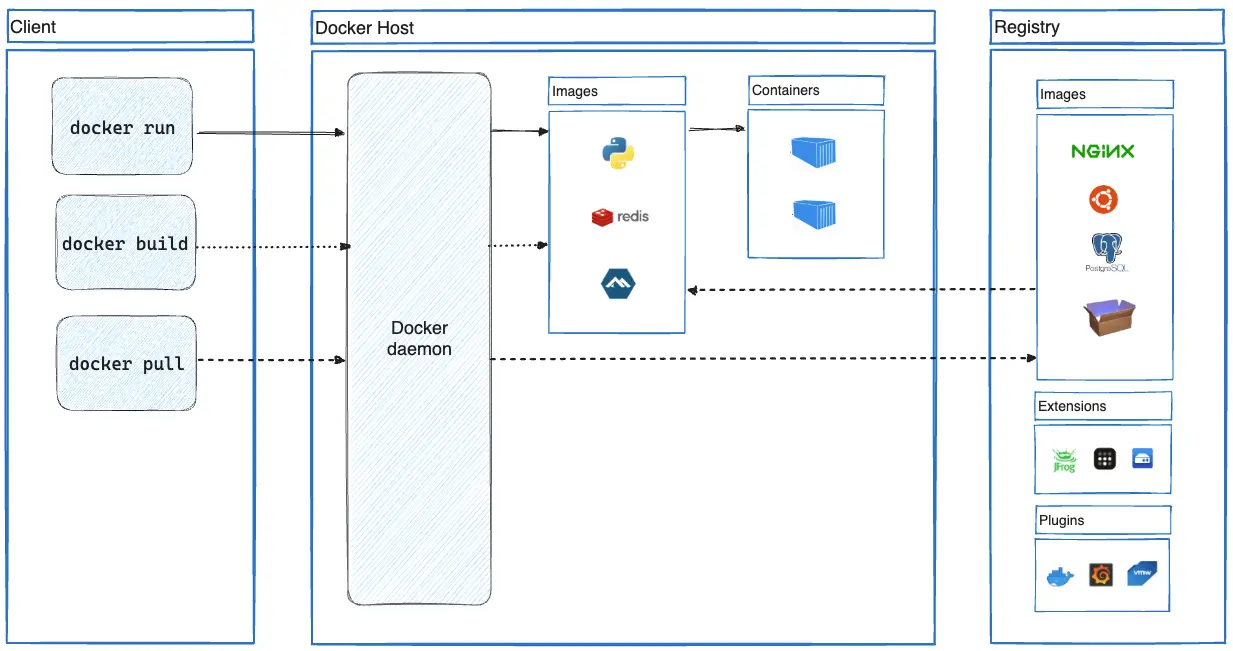
Docker uses a client–server architecture. When you enter a command such as docker run, the Docker client sends a request to the Docker daemon. The daemon does the work of building images, creating containers, and running them.
The client and daemon usually run on the same computer, but the client can also connect to a daemon on another machine. They communicate through Docker’s API, using a local socket or a network connection.
Docker Compose is another way to work with Docker. It lets you define and manage an application made up of multiple containers, such as a Node.js app and a database.
COPY . . | Copies the application code into the image. |
EXPOSE 3000 | Documents the port the application uses. |
CMD ["node", "app.js"] | Starts the application when a container runs. |
docker images |
| Shows downloaded and locally built images. |
| Run a quick Node.js command | docker run --rm node:22-alpine node --version | Prints the Node.js version, then removes the container. |
| Run your app in the background | docker run -d --name my-node-app -p 3000:3000 my-node-app | Starts a named container and makes the app available at http://localhost:3000. |
| List running containers | docker ps | Shows containers that are running. |
| List all containers | docker ps -a | Includes stopped containers. |
| View logs | docker logs -f my-node-app | Follows the app’s output. |
| Open a shell | docker exec -it my-node-app sh | Opens a shell in the running container. |
| Inspect a container | docker inspect my-node-app | Shows its configuration and runtime details. |
| Stop a container | docker stop my-node-app | Stops the running container. |
| Start it again | docker start my-node-app | Starts the same, existing container. |
| Restart it | docker restart my-node-app | Stops and starts the container. |
| Remove it | docker rm my-node-app | Deletes the stopped container. |